
Practice 5
This activity will be similar to TXA06.TXA in the Clic "demo". We will record a wav file with a spoken text and prepare a "fill in blanks" activity. The targets will be the phrases from the recorded document preceded by boxes that activate the corresponding sound fragment. |
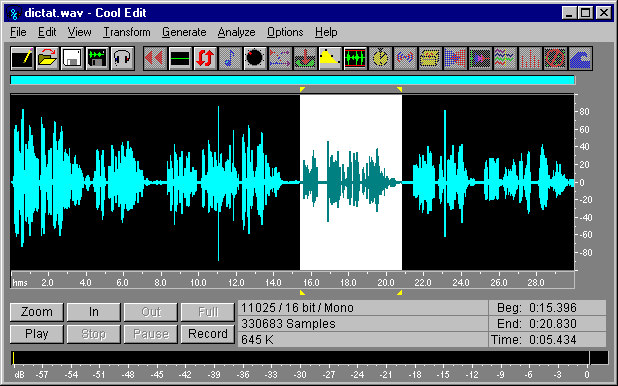
| Phrase | Start | Finish |
| The current Fair Commerce movement started in 1990 | 0 | 3942 |
| and involves more than 3,000 shops in Europe | 3942 | 7458 |
| Its basic principal is to guarantee a fair return for their work to the producers in the South | 8204 | 14544 |
| To achieve this they buy the products directly from the farmers and craftspeople | 15396 | 20883 |
| The items on sale respect social guarantees | 21256 | 24932 |
| they have been made without the use of slave labour or damaging the environment | 25039 | 29940 |
NOTE: The values that appear in the table are only an example. They were obtained from a test recording and do not have to coincide with your values.
- Once you have noted down the fragment values, you can close the sound editor and open Clic.
- Create a new text activity in the practise exercise folder for module 3 set the kind to Fill in blanks.
- Click on the Options button and copy the style from FAIRCOM1.TXA. Before closing the options window, activate the Image box in the Main window area.
- Insert a box at the start of the document with a size of 400x50, without a Frame or Centred text and with the text:
FAIR COMMERCE
- Insert a return after the box and write the dictation text, as shown at the beginning of the exercise.
- Save the activity as FAIRCOM2.TXA.
- Place the cursor before the first "T" in the text and insert a box with a size of 60 x 40, without a frame and with the following text:
{dictat.wav from 0 to XXX}
...replacing "XXX" for the value you have for the end of the first phrase. The values must be written without commas for the thousands, "3,942" would be an incorrect expression and would have to be replaced with "3942".
- Confirm everything and test the box. You will see that Clic inserts a drawing of a speaker, this is the predetermined icon for boxes containing only a sound file:

This icon is a bit on the large side for text activities. We could use the smaller drawing below in its place, which can be found the speaksma.gif file (included in the ZIP file materials for this module):

- Edit the activity and click on the box containing the speaker. Change the size to 30 points width, 20 points height and change the text, adding the reference to the GIF file:
{speaksma.gif}{dictat.wav from 0 to XXX}
- Accept the change and see what the box looks like now.
- Edit the activity again and select the whole phrase from the first "T" to "1990", making sure that the box and the last comma are not included in the selected block. Click on the target creation box (pencil), increase the maximum amount of characters to 60 (this should be increased so as not to block the target if the user commits an error) and reduce the initial answer space to 1.
- Check what we have done so far and then go back to the edit window.
- Before creating the second target, we will make a change that will make our work easier. Click on the Options button and change the size of Grid B to 30 x 20. There are no "grid Bs" in text activities, but Clic uses this size as the default value when creating new boxes.
- Accept the changes and place the cursor in front of the "a" in "and". Create a new box, unmark frame and write the following text:
{speaksma.gif}{dictat.wav from XXX to YYY}
...replacing "XXX" and "YYY" for the start and end positions of the second phrase in the WAV file.
- Select the phrase from the "a" in "and" to "e" in "Europe", without including the full stop in the selected block. Create a new target increasing the maximum amount of characters and reducing the initial answer space to 1.
- Accept and continue creating boxes and targets for the rest of the phrases. Remember to leave out the punctuation signs from the target blocks; this will help the students contextualize each phrase.
- Write the following text in Welcome message:
Do this dictation. Click on the speakers to listen to the phrases.
... and add a Good bye message of congratulations.
- Check the activity. Note that Clic is able to detect most of the errors that might be made in the answers, showing the student where the mistakes are. This is due to the indicate mistakes letter by letter function in Correction options ("finger" button) being active.
To finish the practise exercise we could let the student read the whole text before starting the exercise:
- Edit the activity and go to correction options ("finger" button).
- Mark the Display before starting and Display original text boxes.
- Write the following in the Welcome message box:
Now we will do a dictation. Read the text and when you have finished, click on the mouse to start the exercise.
- Change the maximum time to zero and confirm everything.
- Check the activity and save it with the same name: FAIRCOM2.TXA
If you still have time and want to, here are some extra suggestions to improve the working of the activity:
In the second phrase we could also accept "3,000" written in letters "three thousand". To do this we need to edit the target and assign an alternative answer, separating it from the original answer with a vertical bar. The correct answer text would change to: "and involves more than 3,000 shops in Europe|and involves more than three thousand shops in Europe". Make sure that the maximum amount of characters for this target is large enough for the second answer.
We could make the sound fragments start up automatically on entering each target without having to click on the speaker boxes. To do this we need to edit the targets, activate the Pop-up information window box, write {dictat.wav from XXX to YYY} and mark the Only interpret box, which stops the window with the text from appearing.

